Google Analytics Integration
Connecting MCP Express to GA4 lets your AI assistant pull live analytics data directly: audience reports, traffic breakdowns, real-time visitors, event analytics, and conversion summaries without manually copying dashboards or exporting CSVs.
This integration uses a Google service account, which is a non-human identity that authenticates on your behalf.
Setup Steps
Follow these in order. Most setup issues happen when one step is skipped.
Step 1: Set up a Google Cloud project
Why this matters: Google requires all API access to run through a Cloud project.
- Go to Google Cloud Console.
- In the top navigation bar, click the project selector dropdown.
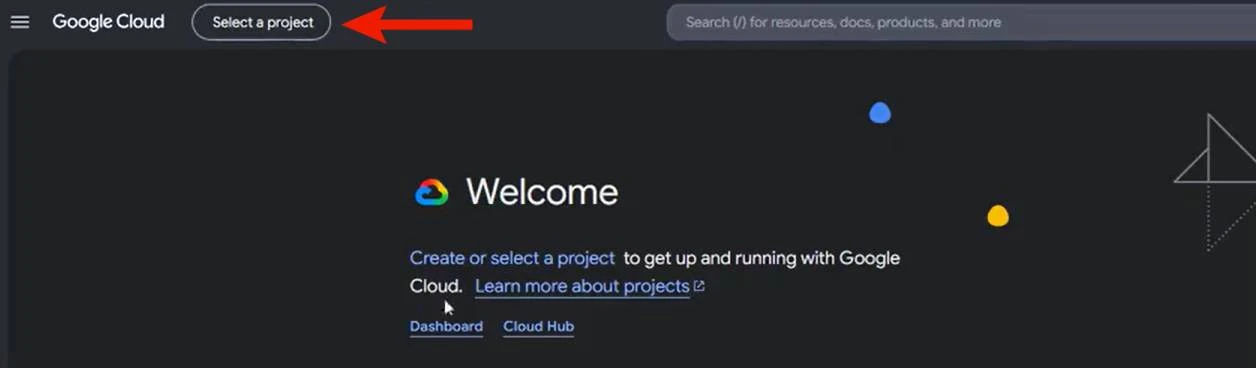
- Click New Project if needed, or select an existing project.
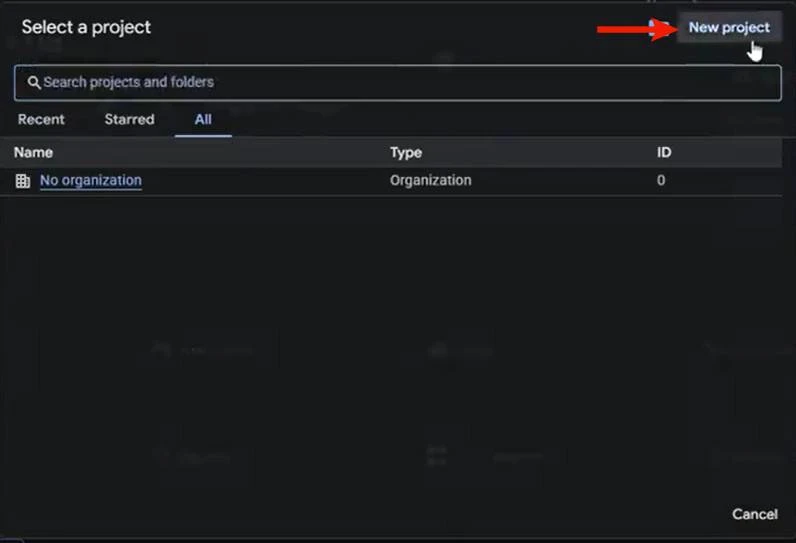
If your team already has a Cloud project for data services, use that project to keep billing and IAM centralized.
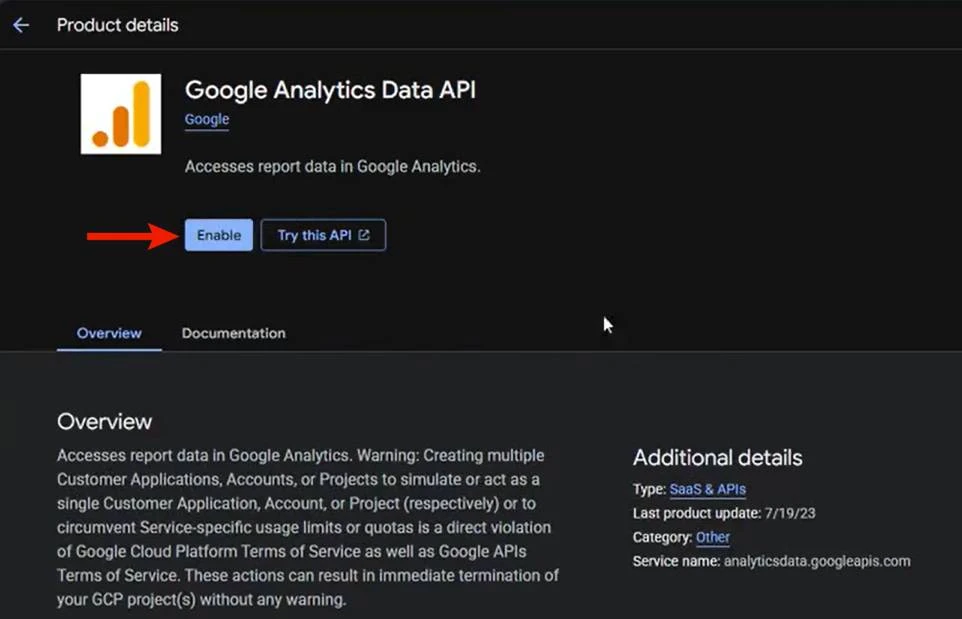
Step 2: Enable the Google Analytics Data API
Why this matters: MCP Express uses this API to read GA4 reports.
-
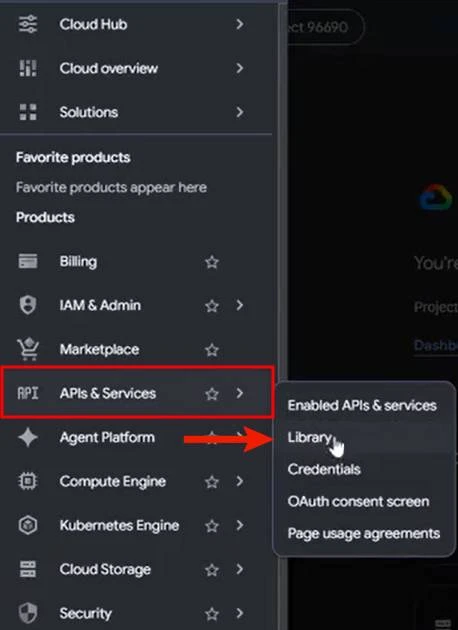
In Google Cloud Console, open the left navigation menu.
-
Go to APIs & Services -> Library.
-
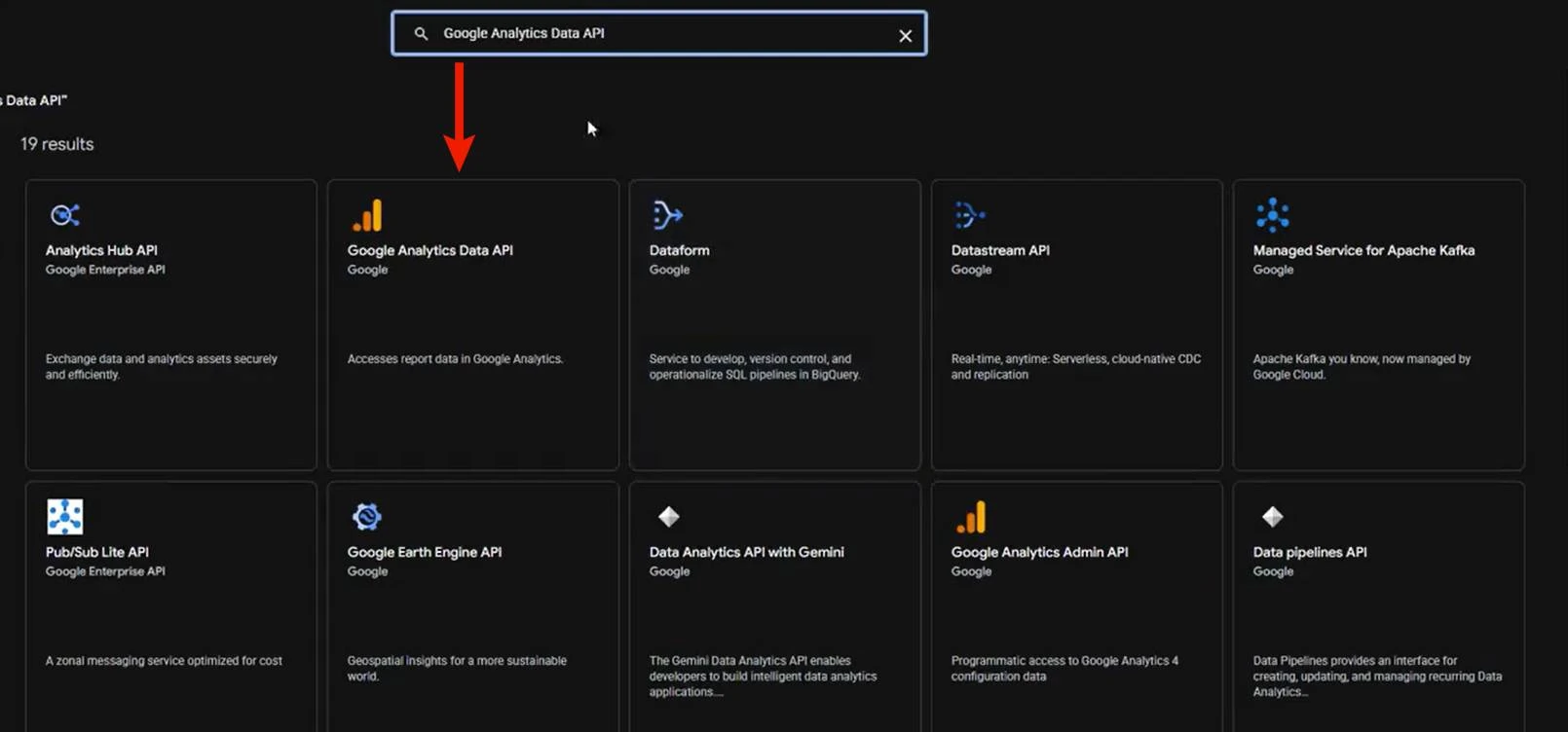
Search for Google Analytics Data API.
-
Open it and click Enable.
Step 3: Create a service account
Why this matters: MCP Express uses this account to authenticate without your personal Google login.
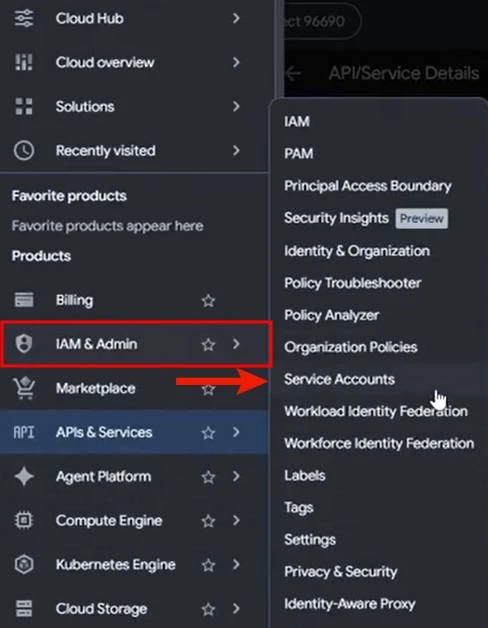
- Open the left navigation menu.
- Go to IAM & Admin -> Service Accounts.
- Click Create Service Account.

- Name it something clear like
mcp-express-analytics. - Click Create and Continue.
- Skip project role assignment.
- Click Done.
Step 4: Download the JSON key
Why this matters: This key file is the credential MCP Express needs.
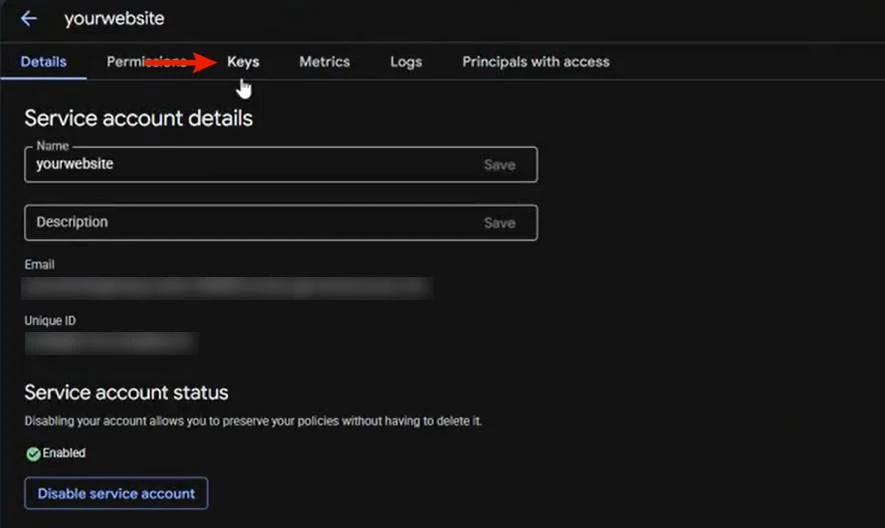
- Open the service account you created.
- Go to the Keys tab.
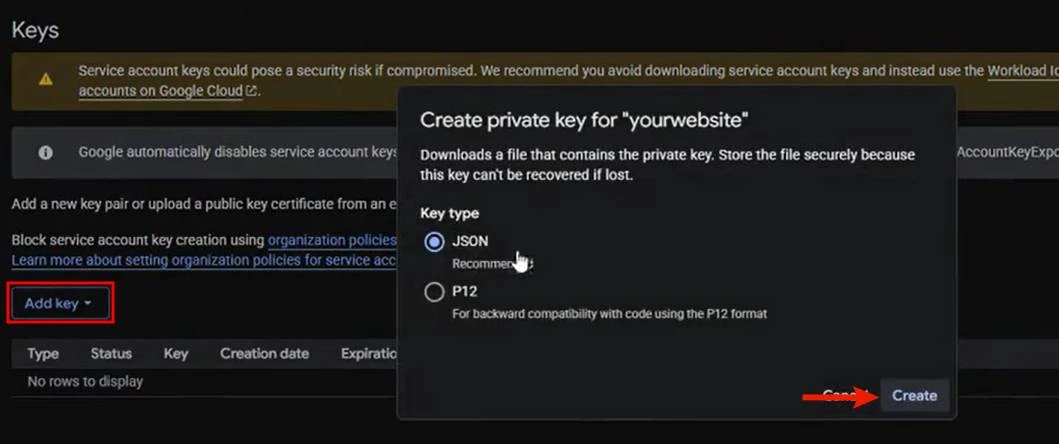
- Click Add Key -> Create new key. 4. Choose JSON and click Create. 5. Save the downloaded file securely.
Treat the JSON key as a password. If it is exposed, delete the key in Google Cloud and create a new one immediately.
Step 5: Grant service account access in GA4
Why this matters: Creating a service account in Google Cloud does not automatically grant GA4 property access.
- Go to Google Analytics and open your GA4 property.
- Click Admin (bottom-left).
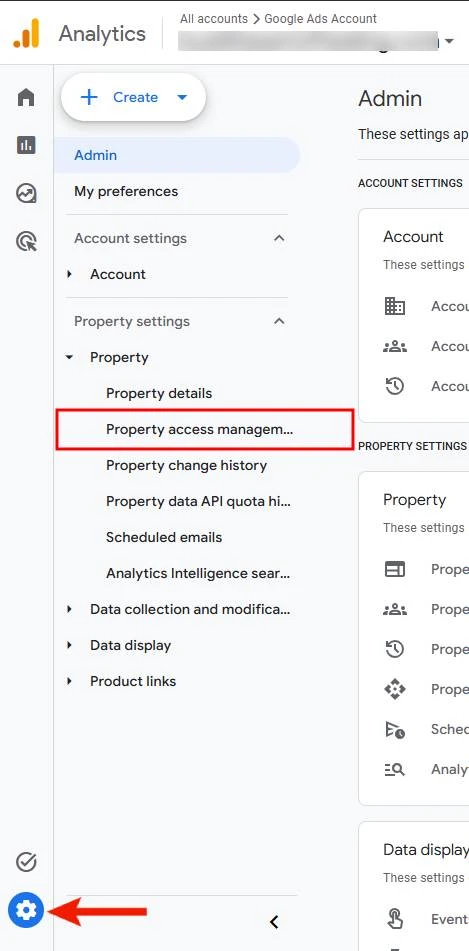
- Go to Property Access Management.
- Click + -> Add users.
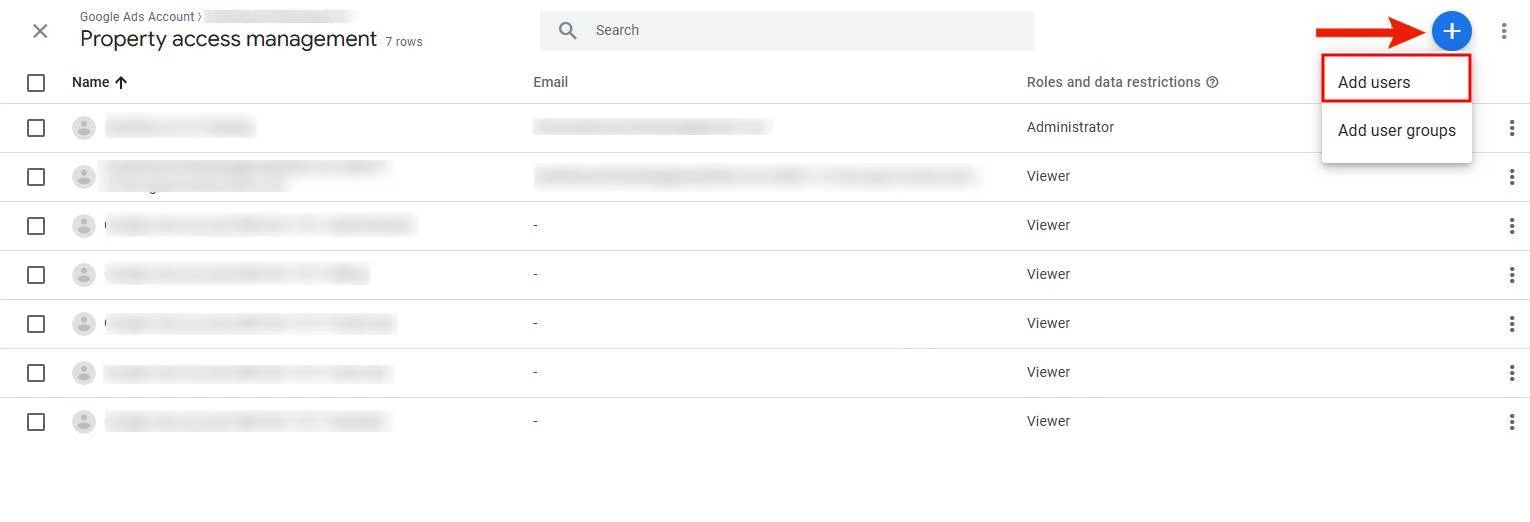
- Add the service account email.
- Set role to Viewer.
- Click Add.
Viewer is sufficient. Do not grant Editor or Administrator roles.
If the GA4 UI rejects the service account email, use the GA4 Admin API workaround:
- Open GA4 Admin API Explorer - accessBindings.create.
- Set
parenttoproperties/YOUR_PROPERTY_ID. - Use this request body:
{
  "user": "your-service-account@your-project-id.iam.gserviceaccount.com",
  "roles": ["predefinedRoles/viewer"]
}
- Click Execute. A
200response confirms access was added.
Step 6: Find your GA4 Property ID
- In GA4, go to Admin -> Property Settings.
- Copy the Property ID (numbers only, for example
123456789).
Do not use the Measurement ID (G-...). You need the numeric Property ID.
Step 7: Connect in MCP Express
- Open the Google Analytics integration in MCP Express.
- Paste the full JSON content into Service Account JSON.
- Enter your Property ID.
- Choose the action(s) your AI should be allowed to call.
- Give the tool a distinct name so your AI can route requests correctly.
Connection Parameters
| Parameter | Description | Required |
|---|---|---|
| Service Account JSON | Full content of your downloaded service account JSON key. | Yes |
| Property ID | GA4 property identifier. Use plain numeric ID (for example 123456789) or properties/123456789. | Yes |
Verify the Connection
Run Get Realtime Users first. It does not require a date range and is the fastest validation check.
If you get a permission or access error, check the following:
- The same service account email was added in GA4 Property Access Management.
- The Google Analytics Data API is enabled in the correct Google Cloud project.
- The JSON key belongs to the same service account you granted GA4 access.
- The Property ID points to the intended GA4 property.
Supported Actions
- Get Active Users: Daily sessions, active users, and new users.
- Get Top Pages: Most visited pages with page views and engagement.
- Get Traffic Sources: Channel/source/medium performance.
- Get Realtime Users: Live active users and active screens/pages.
- Get Top Events: Most frequent GA4 events.
- Get User Demographics: Country, city, or language breakdown.
- Get Device Breakdown: Device category, OS, and browser mix.
- Get Landing Pages: Session-entry pages with session quality metrics.
- Get Conversions: Conversion events and conversion-driving channels.
- Compare Date Ranges: Period-over-period comparison.
Security Checklist
- Assign only Viewer role in GA4.
- Use one service account per integration where possible.
- Store JSON credentials in a secrets vault, not in source control.
- Rotate service account keys on a schedule.
- Revoke and replace any key immediately if exposed.
- Keep result limits bounded for actions that support limits.
Known Limitations
- This integration is read-only and cannot modify GA4 configuration.
- Real-time reports are for current activity, not historical analysis.
- Some demographics (especially city-level) can be sparse in low-traffic properties.
- Historical data exists only from when GA4 tracking was installed.
What You Can Ask After Connecting
- "What are my top traffic sources this week?"
- "How many users converted on the pricing page yesterday?"
- "Show me real-time visitors right now."
- "Compare this month's sessions to last month."