Quick Start Guide
Provision your first MCP server and connect it to a client interface in under five minutes. After completing this guide, you will be able to use natural language to perform complex tasks with your database such as:
- Schema Discovery: "Analyze the schema of my connected database and summarize the table relationships."
- Data Exploration: "Query the last 10 orders and identify any trends in the status column."
- Targeted Retrieval: "Fetch the record for User ID 502 and check for active subscriptions."
Execution Boundaries & Data Integrity
Your AI Agent operates strictly within the execution scopes and access parameters defined during provisioning. Any operation that exceeds these restrictions is not permitted.
Prerequisites
Before beginning the connection process, ensure your environment meets the following requirements:
- MCP Express Account – Sign up free - no credit card required
- MCP Client – Example: A Compatible interface such as Claude Desktop
- Node.js – Version 18.x or higher installed locally.
- Data Source – Accessible credentials for a PostgreSQL instance.
Time required: 5 minutes
Reference Implementation
This guide utilizes PostgreSQL as a primary example. However, the MCP Express architecture allows you to swap PostgreSQL for any supported SQL database or service (e.g., MySQL, Confluence, or Slack). While the connection parameters may vary, the core provisioning workflow remains identical across all integrations.
Provision Your First Server
- Provision the Server: Navigate to the dashboard and select
+ New MCP Server. Define a unique identifier (e.g.,production-data-bridge). - Initialize Tool: Within the server interface, select
Add Toolto define a new capability for your agent. - Select Integration: Choose
PostgreSQL(or your preferred database) from the integration library. - Configure Connection: Enter your service credentials or connection string. The engine will automatically parse and populate the configuration parameters.
- Define Operations: Input the specific queries you intend the AI agent to execute.
- Name your Tool: Assign a precise name and description for the tool. This metadata is critical for the LLM to determine invocation logic during a session.
Use descriptive tool names like get_customer_by_id to improve the LLM's accuracy during tool selection.
Access the full suite of PostgreSQL tool definitions and resource mappings in the PostgreSQL Integration Guide.
Connect Your AI Agent
- Authorize Client: Create a new Client ID and Client Secret within the dashboard.
- Verify Connection: Open your MCP-compatible AI (e.g., Claude) and verify that the tools are discovered.
- Interact with your Data: Query your database using natural language. The LLM will now automatically map your prompts to the provisioned SQL operations.
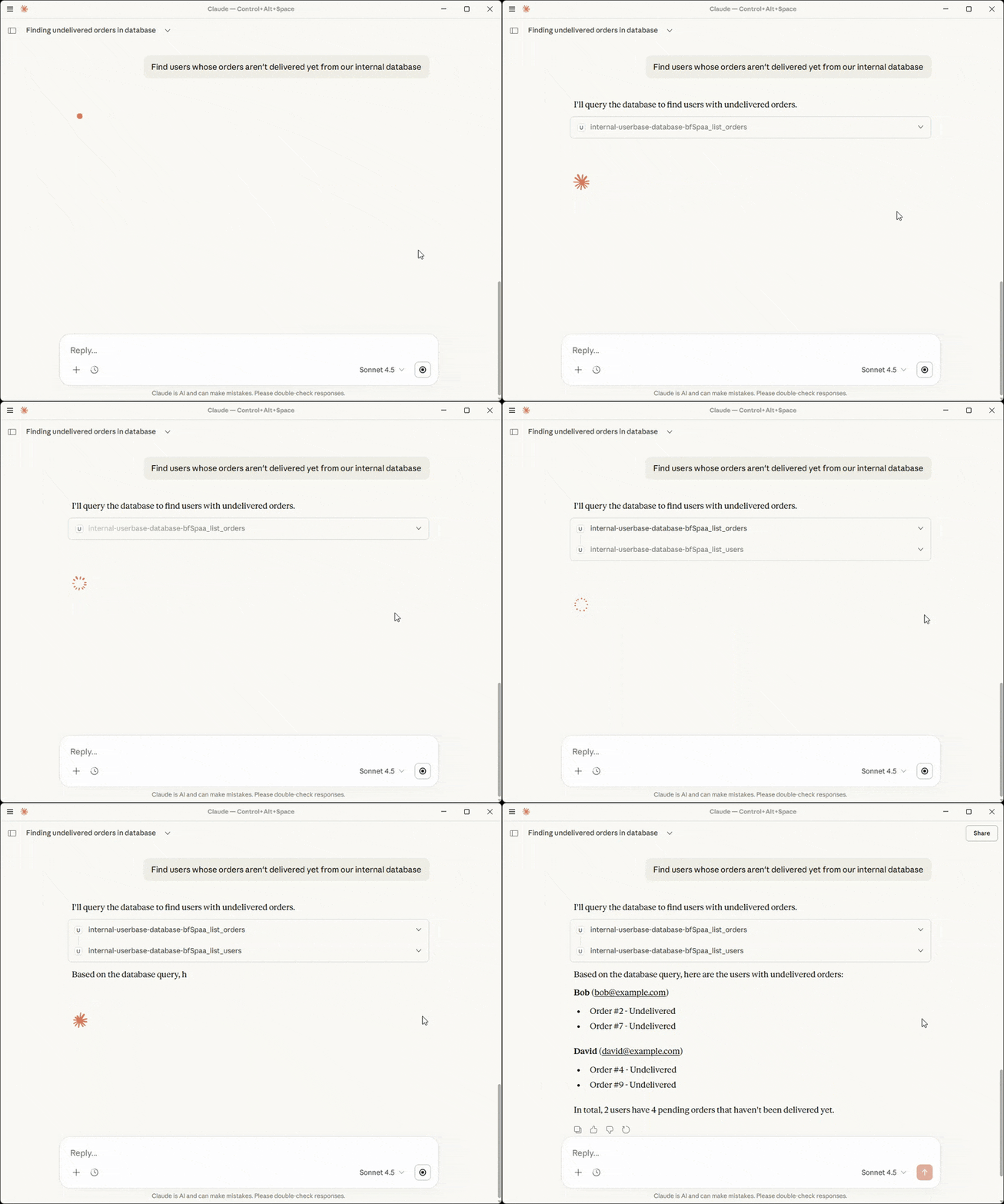
Practical Implementation Walkthrough
For a step-by-step guide on bridging your MCP server with Claude Desktop, refer to our detailed implementation article: Connect MCP Server with Claude in under 5 minutes.
Next Steps
- Scale your operations – Add complex queries for fetching orders or updating records.
- Expand your ecosystem – Integrate Slack or Confluence to centralize your strategic insights.
- Enable your team – Invite colleagues so they will benefit from the same high-context AI tools.
Need help? Feel free to reach out to our support team.