DynamoDB Integration
Integrate MCP Express with Amazon DynamoDB to create tools that can interact with your NoSQL database. This integration allows you to perform get and put operations against your DynamoDB tables and use the data in your MCP tools.
Configuration
Connection Parameters
| Parameter | Required | Description |
|---|---|---|
| Region | Yes | AWS Region where your DynamoDB table is located |
| AWS Access Key | Yes | AWS Access Key ID for authentication |
| AWS Secret Key | Yes | AWS Secret Access Key for authentication |
| Table Name | Yes | Name of the DynamoDB table to interact with |
| Action | Yes | Operation to perform: get or put |
Setting Up DynamoDB Integration
- Select DynamoDB Integration: In your MCP server dashboard, choose "DynamoDB" from the available integrations
- Configure AWS Credentials: Enter your AWS Access Key ID and Secret Access Key
- Select Region: Choose the AWS region where your DynamoDB table is located
- Specify Table: Enter the name of the DynamoDB table you want to access
- Choose Action: Select either
getorputoperation - Configure Action: Set up the action-specific configuration based on your operation
- Test Connection: Use the built-in connection test to verify your setup works correctly

Operating Modes
The DynamoDB integration supports two primary operations, each with its own configuration requirements.
Get Item
Retrieves a specific item from your DynamoDB table using the primary key. This operation is useful for fetching individual records based on a unique identifier.
Action Config Parameters:
| Parameter | Required | Description | Supports Templates |
|---|---|---|---|
| Key Attribute | Yes | The name of the attribute that is the Primary Key | No |
| Key | Yes | The value of the key to lookup | Yes (using {{ }} syntax) |
Example Configuration:
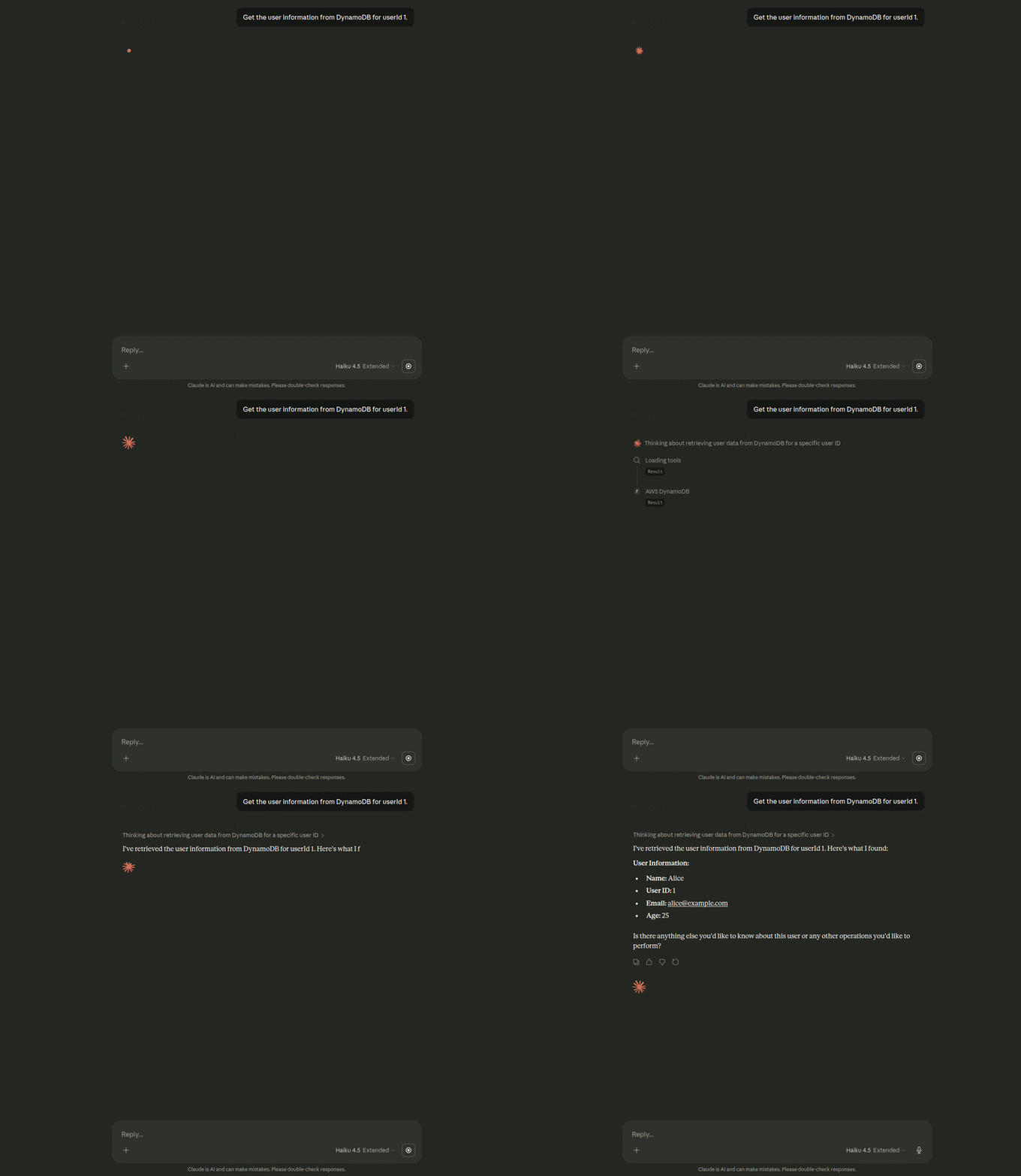
If the Key Attribute has been set to id and Key as {{userId}}, the integration will retrieve the item where the primary key attribute id matches the value provided in the userId input parameter (from the LLM).
Alternatively, you can set up the tool to return a static value by defining the Key with a fixed value, for example: abc-123-xyz. This configuration retrieves a specific item with a fixed key value.
Put Item
Stores a complete item in the specified DynamoDB table. The entire item received by the tool (provided by the LLM) will be written to the table. This operation is useful for creating new items or replacing existing ones. No additional configuration is required here since the tool saves everything that it receives.
Common Use Cases
1. Data Retrieval
Fetch items from your DynamoDB table:
- Retrieve user profiles by user ID
- Fetch session data by session key
- Look up product information by SKU
- Access configuration settings by key
2. Data Storage
Store and update data in your DynamoDB table:
- Create new user accounts
- Save session state
- Store application events
- Update product inventory
Best Practices
Security
- Use AWS IAM roles with minimal required permissions for DynamoDB access
- Never hardcode AWS credentials in your configuration
- Store AWS Access Keys and Secret Keys securely using secret management
- Use AWS IAM policies to restrict access to specific tables and operations
- Enable encryption at rest for sensitive data in DynamoDB
- Regularly rotate AWS access keys
Performance
- Design your DynamoDB schema with efficient access patterns in mind
- Use appropriate primary key attributes for fast lookups
- Consider using DynamoDB indexes for additional query patterns
- Monitor your DynamoDB read and write capacity consumption
- Implement exponential backoff for retries on throttled requests
- Cache frequently accessed items when appropriate
Reliability
- Test your get and put operations thoroughly before deployment
- Implement proper error handling for missing items and access errors
- Monitor AWS service health for your region
- Use CloudWatch to track DynamoDB metrics and set up alerts
- Consider implementing retry logic for transient failures
- Plan for eventual consistency in your application logic
Cost Optimization
- Choose between on-demand and provisioned capacity based on your usage patterns
- Monitor your read and write capacity units to avoid over-provisioning
- Use DynamoDB's Time to Live (TTL) feature to automatically delete expired items
- Consider using DynamoDB reserved capacity for predictable workloads
Troubleshooting
Connection Issues
- Verify that your AWS Access Key ID and Secret Access Key are correct
- Ensure the IAM user has appropriate permissions for DynamoDB operations
- Check that the specified AWS region matches where your table is located
- Verify the table name is spelled correctly and exists in the specified region
- Confirm that your network allows HTTPS connections to AWS endpoints
Authentication Problems
- Confirm that the IAM credentials have not expired
- Verify the IAM user or role has
dynamodb:GetItemand/ordynamodb:PutItempermissions - Check that no service control policies (SCPs) are blocking DynamoDB access
- Ensure MFA requirements are satisfied if configured on the IAM user
Operation Errors
- For get operations, verify that the Key Attribute matches your table's primary key name
- Confirm that the key value format matches the attribute type in your table schema
- For put operations, ensure the item includes the required primary key attribute
- Check that the item size does not exceed DynamoDB's 400 KB limit
- Review CloudWatch logs for detailed error messages from DynamoDB
- Verify that capacity units are available (not throttled) for your operations
Data Issues
- Ensure the key value provided matches the data type defined in your table schema
- For get operations returning no results, verify the item exists with the specified key
- Check that template variables are being properly substituted with valid values
- Verify that put operations include all required attributes for your table