Connect MCP Express with OAuth
Learn how to connect your AI tool to an MCP Express server using MCP OAuth.
Once connected, your AI tool will have access to every tool you've built and published on your authorized server.
Prerequisites
Before you begin, ensure you have:
- An active MCP Express account with at least one server configured
- An AI tool that supports remote MCP servers
Not sure if your tool supports MCP? Look for Model Context Protocol or MCP server support in its documentation.
Step 1: Configure your AI tool
Choose your AI client and follow the setup instructions below.
Claude Code
Run the following command:
claude mcp add --transport http mcp-express https://api.mcp-express.com/gateway/mcp
Then run: /mcp and complete the authorization flow when prompted.
Need more details on setup, commands, and MCP behavior in Claude Code? View Claude Code docs
Cursor
- Open Cursor Settings → MCP → Add new global MCP server
- Paste:
{
  "mcpServers": {
    "mcp-express": {
      "url": "https://api.mcp-express.com/gateway/mcp"
    }
  }
}
- Save and restart Cursor
- Trigger any MCP tool and complete authorization
You can share this configuration with your team by adding a .cursor/mcp.json file to your project’s root directory.
Learn how Cursor integrates with MCP servers and manages context. View Cursor MCP docs
VS Code
- Create
.vscode/mcp.json:
{
  "servers": {
    "mcp-express": {
      "type": "http",
      "url": "https://api.mcp-express.com/gateway/mcp"
    }
  }
}
- Open Command Palette (
Ctrl+Shift+P) - Run MCP: List Servers
- Start MCP Express and complete authorization
Use MCP: Open User Configuration to apply this configuration across all workspaces.
Explore how MCP servers work within VS Code and how to manage them effectively. View VS Code MCP docs
Claude Desktop
- Open Settings → Connectors
- Click Add Connector
- Enter:
https://api.mcp-express.com/gateway/mcp
- Complete the authorization flow
Read more about configuring connectors and using MCP servers in Claude Desktop. View Claude Desktop docs
Windsurf
- Open Settings (
Cmd + ,) - Search for MCP
- Open
mcp_config.json - Add:
{
  "mcpServers": {
    "mcp-express": {
      "serverUrl": "https://api.mcp-express.com/gateway/mcp"
    }
  }
}
- Save and restart Windsurf
- Complete authorization when prompted
Understand how MCP configuration works in Windsurf and how to extend it. View Windsurf MCP docs
Codex
- Open your Codex configuration file:
~/.codex/config.toml
- Add the MCP server configuration:
[mcp_servers.mcp-express]
url = "https://api.mcp-express.com/gateway/mcp"
- Run the following command:
codex mcp login mcp-express
- Complete authorization
Use a .codex/config.toml file in your project root to share configuration across your team.
For deeper guidance on authentication, configuration, and MCP usage in Codex: View Codex MCP docs
Other tools
If your AI tool supports MCP, connect using:
https://api.mcp-express.com/gateway/mcp
Most tools accept either a direct URL or a JSON configuration.
Step 2: Authorize access
Once configured, your AI tool will open a browser window.
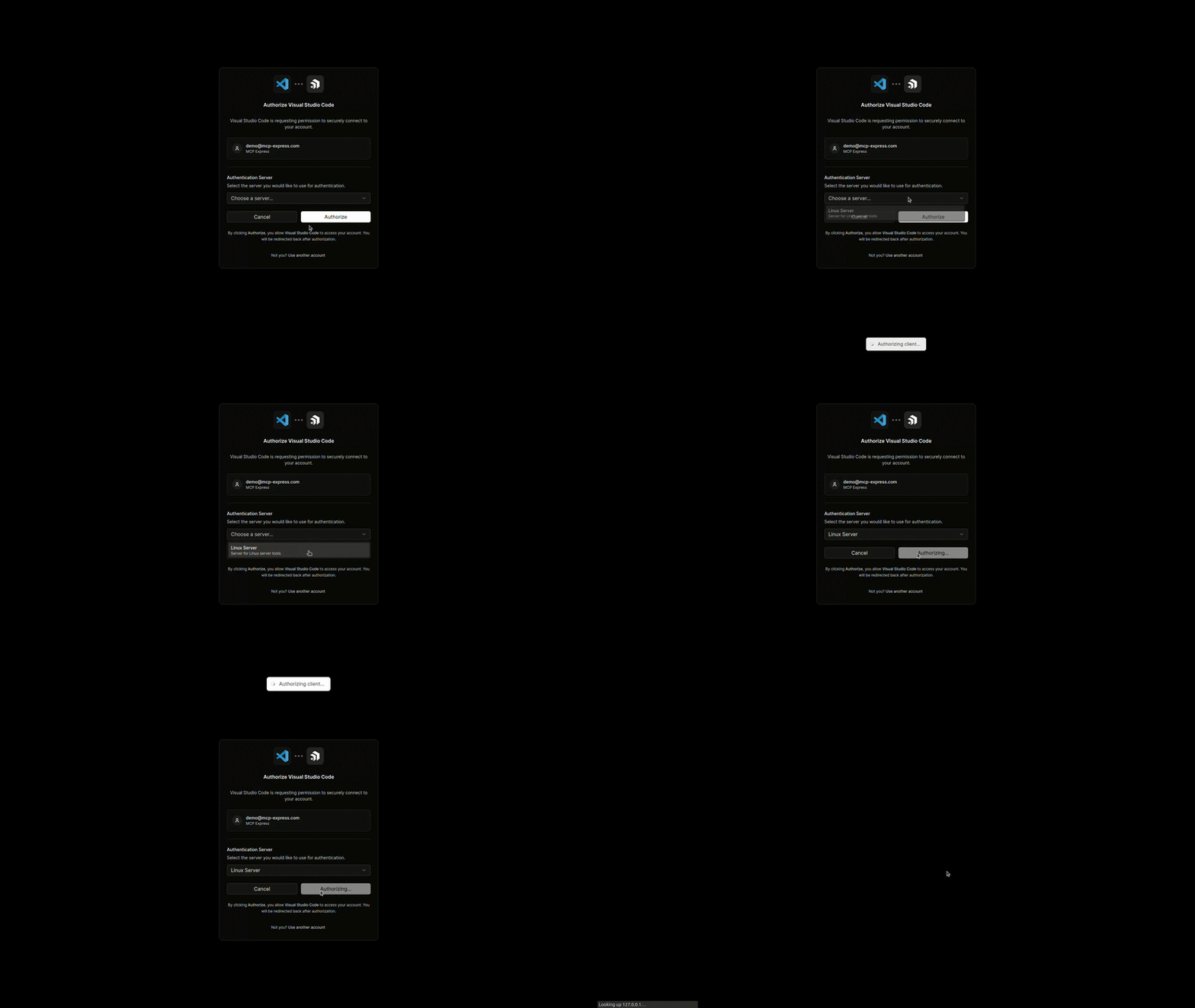
- Select your Authentication Server
- Click Authorize
- You will be redirected back to your AI tool
Available tools
After authorization, your AI assistant will have access to all tools published on your server.
To view available tools, ask:
What tools do you have access to? Use MCP.
Your AI assistant will list all available tools on your authorized server, along with a brief description of each.
If a tool is missing, ensure you are connected to the correct server and check your MCP Express servers
Troubleshooting
Authorization issues
- Make sure you complete the OAuth flow when prompted
- Try disconnecting and reconnecting the integration
- Look for a “Clear authentication” or “Disconnect” option in your AI tool’s MCP settings
No tools or changes not reflecting
- Ensure you are connected to the correct MCP server
- Verify the server contains the expected tools
- Reconnect to refresh the session or trigger a fresh MCP request in your AI tool
No tools are showing after connecting
- Ensure you are connected to the correct MCP server
- Verify the server you selected contains the expected tools
- Reconnect to refresh the session
For any issues not covered above, or if you need further assistance, please contact our support team: MCP Express Support
Unsupported Tools
If your AI client does not support MCP OAuth, it is recommended to use Client Credentials as an alternative. Refer to the MCP Express Client Credentials Guide for detailed instructions on securely configuring access to all tools on your authorized server.